
What the EXP GDC Beast M.2 M-Key is
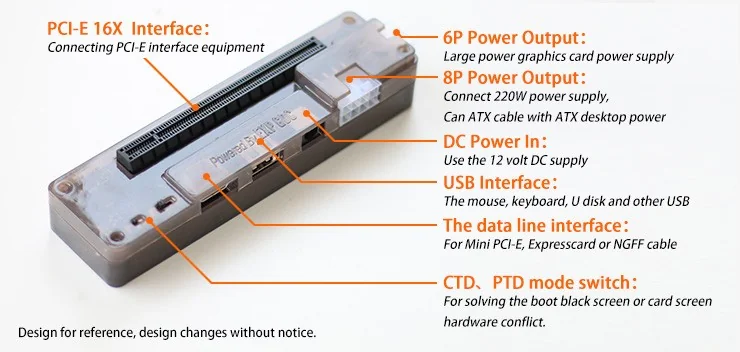
The EXP GDC Beast M.2 M-Key is a bare-bones external graphics card dock that lets you run a full-size desktop GPU off a laptop or mini PC that has a spare M.2 M-key (NVMe) slot. It is not a sealed Thunderbolt enclosure with its own power brick and a single cable. It’s an open dock board with a real PCIe x16 slot soldered to it, a clutch of power connectors, and a ribbon cable that plugs into your NVMe slot. You supply the graphics card and the power.
That makes it the cheapest credible way onto the eGPU ladder. A Beast board runs $40–$90, versus $200–$400 for an OCuLink dock or a Thunderbolt enclosure. The catch is that it asks more of you: you do the wiring, you bring (or reuse) an ATX power supply, and you accept a slower link than the newer OCuLink and USB4 options. For the right buyer, that trade is more than fair.
One thing to get right before you order: EXP GDC sells the Beast in mPCIe, ExpressCard, and M.2 flavors. Buy the M.2 M-Key (NVMe) version specifically: it is the only one that taps a full four-lane PCIe link. The others are limited to a single lane.
Interface & bandwidth: how much speed do you lose?
The Beast M.2 M-Key connects through your machine’s NVMe slot and runs at PCIe 3.0 x4. That works out to roughly 3.9 GB/s, or about 32 Gbps of real bandwidth (you’ll sometimes see it marketed nearer 40 Gbps; that’s the raw signaling figure, not usable throughput).
For context, here’s where that sits among the common external links:
- Thunderbolt 3 / 4 & USB4: PCIe 3.0 x4, ~32 Gbps effective, with extra protocol overhead
- OCuLink: PCIe 4.0 x4, ~63–64 Gbps, the current sweet spot for mini-PC eGPUs
- EXP GDC Beast M.2 M-Key: PCIe 3.0 x4, ~32 Gbps, no Thunderbolt tax
So the Beast lands in roughly the same bandwidth class as Thunderbolt, and about half the bandwidth of an OCuLink dock like the ones we cover for the GMKtec K11. A four-lane PCIe 3.0 link costs you something at high resolutions: figure 10–25% fewer frames than the same card in a desktop’s x16 slot, widening as you push past 1080p or pair it with a top-tier GPU that the link can’t feed. At 1080p and 1440p with a mid-range card, the loss is small enough that most people won’t notice it in a blind test.
A historical note worth flagging: the older EXP GDC M.2 boards (and the A/E-key Wi-Fi-slot variants) defaulted to a single PCIe lane. The M-key NVMe board reviewed here is the four-lane part. Don’t confuse the two listings.
Related: compare it with our best eGPU adapters for mini PCs roundup, the ADT-Link R43SG M.2 eGPU adapter review and the AOOSTAR AG02 OCuLink eGPU dock review.
What GPUs and hosts it supports
Graphics cards. The Beast drives full-size NVIDIA and AMD desktop cards. The open x16 slot has no length limit, so a triple-fan card fits as happily as a compact one. Practical ceilings come from your power supply and the diminishing returns of feeding a 4080-class card through a x4 link, not from the dock itself. For this interface, a card in the RTX 4060 / 4060 Ti / RTX 3060 / RX 7600 range is the value sweet spot; anything more powerful spends an increasing share of its muscle waiting on bandwidth.
Hosts: the part you must verify first. This is mandatory homework: the dock needs an exposed M.2 M-key NVMe slot you can reach with the ribbon cable. That means:
- Mini PCs with a second (or spare) M.2 2280 slot. Boxes like the Geekom A8 Max ship with a free M.2 slot, though on most you’ll be giving up an SSD bay to use it.
- Laptops with a spare or accessible NVMe slot. You typically route the cable out through a chassis gap or a service hatch.
Two caveats. First, you lose the NVMe slot you borrow, so plan your storage around it. Second, the GPU usually outputs to its own display ports; getting the image back onto a laptop’s internal panel depends on the machine’s muxing support and is not guaranteed.
Does the EXP GDC Beast work with NVIDIA cards?
Mostly yes, but be ready for Error 43. On some laptop and mini-PC setups, NVIDIA’s driver flags the externally-attached GPU and disables it. There are well-documented community workarounds (driver order, DSDT overrides, booting with the eGPU already attached), but it’s an honest friction point. AMD Radeon cards tend to be more plug-and-play on this hardware.
Build, power, and cooling
The “dock board” design is the Beast’s quiet advantage over a bare PCIe riser: the card seats into a board with proper power circuitry rather than a flapping cable, which makes the power side far less intimidating for a first-timer.
Power is where the Beast earns its keep:
- A dedicated 6-pin output feeds the graphics card’s PCIe power connector.
- It accepts a full ATX PSU (the standard 24/8-pin desktop supply), so you can reuse an old power supply instead of buying a proprietary brick.
- Multi-input auto-switching with soft-start and an isolation-protection circuit smooth the power-on sequence and reduce the risk of a hard inrush spike.
- An included power button acts as the ATX jumper, so you can switch the external supply on and off without paper-clipping the 24-pin connector.
Cooling is entirely on the graphics card: there’s no enclosure fan because there’s no enclosure. The board sits in open air, which is fine, but it also means live 12V pins are exposed on the bench. Keep it off conductive surfaces and away from curious fingers and pets.
Pricing and where to buy
The EXP GDC Beast M.2 M-Key sells for $40–$90 depending on the seller and bundle (some listings include a 6-pin cable or a small PSU). At that price it is, by a wide margin, the cheapest entry into desktop-GPU eGPU territory.
Budget realistically for the whole setup, though: the dock is only one line item. Add an ATX power supply if you don’t have a spare (a quality 450–650W unit runs $50–$80) and the graphics card itself. The dock saves you money; it doesn’t make the GPU free.
When buying, double-check the listing says M.2 / NVMe / M-Key. Sellers cross-list the mPCIe and ExpressCard boards under near-identical titles, and those are the slower single-lane parts.
What we’d flag
This is a genuinely useful product at its price, but go in clear-eyed:
- It’s a kit, not an appliance. You wire the power, mount the card, and manage the PSU. If you want plug-and-play, an OCuLink dock or Thunderbolt enclosure is the calmer path.
- PCIe 3.0 x4 caps real performance: fine for mid-range cards, wasteful with a flagship.
- NVIDIA Error 43 appears on some setups and may need a workaround.
- Exposed 12V pins and an open board demand basic care; this is bench hardware, not a sealed box.
- No hot-plug guarantees: plan to boot with the eGPU attached.
- Generic Chinese “Beast-class” hardware with variable QC across sellers; buy from a listing with a return window and recent reviews.
Verdict
The EXP GDC Beast M.2 M-Key is the budget tinkerer’s eGPU. For $40–$90 plus a spare ATX supply, it turns a mini PC or laptop’s idle NVMe slot into a real PCIe x16 slot that drives a full desktop graphics card, something no $40 product has any business doing as well as this one does.
It is not the dock to recommend to someone who wants a single cable and zero fuss; the bandwidth ceiling, the Error-43 lottery, and the bring-your-own-power assembly all argue for an OCuLink dock if your host has the port and your budget has the room. But if you’re pairing a mid-range card with a machine that only exposes an M.2 slot, and you enjoy the build as much as the result, the Beast is a remarkably honest piece of hardware for the money. Buy the M.2 M-Key version, give it a decent power supply, and it’ll punch far above its price.